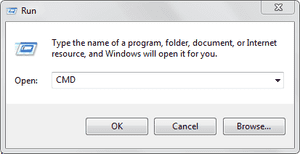
 Run commands are really useful as it can open your services on the go by just inserting some key-words, well finding them manually from the control panel is a big headache, so we are bringing you some of the useful commands for the RUN Panel which will surely boost your work creativity.
A
Accessibility Controls - access.cpl
Accessibility Wizard - accwiz
Add Hardware Wizard - hdwwiz.cpl
Add/Remove Programs - appwiz.cpl
Administrative Tools - control admintools
Adobe Acrobat (if installed)- acrobat
Adobe Designer (if installed)- acrodist
Adobe Distiller (if installed)- acrodist
Adobe ImageReady (if installed)- imageready
Adobe Photoshop (if installed) - photoshop
Automatic Updates - wuaucpl.cpl
B
Bluetooth Transfer Wizard – fsquirt
C
Calculator - calc
Certificate Manager - certmgr.msc
Character Map - charmap
Check Disk Utility - chkdsk
Clipboard Viewer - clipbrd
Command Prompt - cmd
Component Services - dcomcnfg
Computer Management - compmgmt.msc
Control Panel – control
D
Date and Time Properties - timedate.cpl
DDE Shares - ddeshare
Device Manager - devmgmt.msc
Direct X Control Panel (If Installed)* - directx.cpl
Direct X Troubleshooter - dxdiag
Disk Cleanup Utility - cleanmgr
Disk Defragment - dfrg.msc
Disk Management - diskmgmt.msc
Disk Partition Manager - diskpart
Display Properties - control desktop
Display Properties - desk.cpl
Display Properties (w/Appearance Tab Preselected) - control color
Dr. Watson System Troubleshooting Utility - drwtsn32
Driver Verifier Utility – verifier
E
Event Viewer - eventvwr.msc
F
Files and Settings Transfer Tool - migwiz
File Signature Verification Tool - sigverif
Findfast - findfast.cpl
Firefox (if installed) - firefox
Folders Properties - control folders
Fonts - control fonts
Fonts Folder - fonts
Free Cell Card Game – freecell
G
Game Controllers - joy.cpl
Group Policy Editor (XP Prof) - gpedit.msc
H
Hearts Card Game - mshearts
Help and Support - helpctr
HyperTerminal – hypertrm
I
Iexpress Wizard - iexpress
Indexing Service - ciadv.msc
Internet Connection Wizard - icwconn1
Internet Explorer - iexplore
Internet Properties - inetcpl.cpl
Internet Setup Wizard - inetwiz
IP Configuration (Display Connection Configuration)- ipconfig /all
IP Configuration (Display DNS Cache Contents) - ipconfig /displaydns
IP Configuration (Delete DNS Cache Contents) - ipconfig /flushdns
IP Configuration (Release All Connections) - ipconfig /release
IP Configuration (Renew All Connections) - ipconfig /renew
IP Configuration (Refreshes DHCP & Re-Registers DNS) - ipconfig /registerdns
IP Configuration (Display DHCP Class ID) - ipconfig /showclassid
IP Configuration (Modifies DHCP Class ID)- ipconfig /setclassid
J
Java Control Panel (If Installed) - jpicpl32.cpl
Java Control Panel (If Installed) – javaws
K
Keyboard Properties - control keyboard
L
Local Security Settings - secpol.msc
Local Users and Groups - lusrmgr.msc
Logs You Out Of Windows – logoff
M
Malicious Software Removal Tool - mrt
Microsoft Access (if installed) - access.cpl
Microsoft Chat - winchat
Microsoft Excel (if installed) - excel
Microsoft Frontpage (if installed) - frontpg
Microsoft Movie Maker - moviemk
Microsoft Paint - mspaint
Microsoft Powerpoint (if installed) - powerpnt
Microsoft Word (if installed) - winword
Microsoft Syncronization Tool - mobsync
Minesweeper Game - winmine
Mouse Properties - control mouse
Mouse Properties - main.cpl
N
Nero (if installed) - nero
Netmeeting - conf
Network Connections - control netconnections
Network Connections- ncpa.cpl
Network Setup Wizard - netsetup.cpl
Notepad - notepad
Nview Desktop Manager (If Installed) - nvtuicpl.cpl
O
Object Packager – packager
ODBC Data Source Administrator - odbccp32.cpl
On Screen Keyboard - osk
Opens AC3 Filter (If Installed)- ac3filter.cpl
Outlook Express – msimn
P
Paint - pbrush
Password Properties - password.cpl
Performance Monitor - perfmon.msc
Performance Monitor - perfmon
Phone and Modem Options - telephon.cpl
Phone Dialer - dialer
Pinball Game - pinball
Power Configuration - powercfg.cpl
Printers and Faxes - control printers
Printers Folder - printers
Private Character Editor – eudcedit
Q
Quicktime (If Installed) - QuickTime.cpl
Quicktime Player (if installed) – quicktimeplayer
R
Real Player (if installed) - realplay
Regional Settings - intl.cpl
Registry Editor - regedit
Registry Editor - regedit32
Remote Access Phonebook - rasphone
Remote Desktop - mstsc
Removable Storage - ntmsmgr.msc
Removable Storage Operator Requests - ntmsoprq.msc
Resultant Set of Policy (XP Prof) - rsop.msc
S
Scanners and Cameras - sticpl.cpl
Scheduled Tasks - control schedtasks
Security Center - wscui.cpl
Services - services.msc
Shared Folders - fsmgmt.msc
Shuts Down Windows - shutdown
Sounds and Audio - mmsys.cpl
Spider Solitare Card Game - spider
SQL Client Configuration - cliconfg
System Configuration Editor - sysedit
System Configuration Utility - msconfig
System File Checker Utility (Scan Immediately) - sfc /scannow
System File Checker Utility (Scan Once At Next Boot)- sfc /scanonce
System File Checker Utility (Scan On Every Boot)- sfc /scanboot
System File Checker Utility (Return to Default Setting) - sfc /revert
System File Checker Utility (Purge File Cache) - sfc /purgecache
System File Checker Utility (Set Cache Size to size x) - sfc /cachesize=x
System Information - msinfo32
System Properties - sysdm.cpl
T
Task Manager - taskmgr
TCP Tester - tcptest
Telnet Client - telnet
Tweak UI (if installed) – tweakui
U
User Account Management - nusrmgr.cpl
Utility Manager – utilman
W
Windows Address Book - wab
Windows Address Book Import Utility - wabmig
Windows Backup Utility (if installed) - ntbackup
Windows Explorer - explorer
Windows Firewall - firewall.cpl
Windows Address Book - wab
Windows Address Book Import Utility - wabmig
Windows Backup Utility (if installed) - ntbackup
Windows Explorer - explorer
Windows Firewall - firewall.cpl
Windows Magnifier - magnify
Windows Management Infrastructure - wmimgmt.msc
Windows Media Player - wmplayer
Windows Messenger - msmsgs
Windows Picture Import Wizard (need camera connected) - wiaacmgr
Windows System Security Tool - syskey
Windows Update Launches - wupdmgr
Windows Version (to show which version of windows) - winver
Windows XP Tour Wizard - tourstart
Here ends the list of these useful commands, well hope that these commands really increase your productivity and hence fasten your work experience, enjoy and do share this post with all your friends.


