Showing posts with label tip. Show all posts

Friday, 12 January 2018

How to earn special cash back with every order using Flipkart

It is a very simple way to earn additional discounts from Flipkart.
If stuck at any step, please ask in the comments below.
This method will always work with all the products available in the flipkart. It is the employee's discount which you will receive in your flipkart wallet.
1. Open Flipkart.com
2. Go to the page of the product you wish to buy.
3. Now look at the top where URL(link) is present.
4. The link will be like 
http://www.flipkart.com/apple-iphone-5s/p/itmdv6f75dyxhmt4?pid=MOBDPPZZDX8WSPAT&srno=b_1&ref=2e406ace-1f7b-4175-882c-b04f32f1fcca
5. Change the purple part of the link &ref=2e406ace-1f7b-4175-882c-b04f32f1fcca with &affid=rishunk16
6. Finally the link will look like
http://www.flipkart.com/apple-iphone-5s/p/itmdv6f75dyxhmt4?pid=MOBDPPZZDX8WSPAT&srno=b_1&affid=rishunk16
7. Now you may buy the product and get up to 30% cash back in your Flipkart Wallet immediately after the payment is done.

HATE SUCH STEPS?
Simply click on the employee's flipkart link
www.flipkart.com 

Saturday, 14 July 2012

Download Temple Run Brave Full Version For Android


Temple Run Brave4Temple Run has got more than 500,000 downloads for Android. It is the free version. But Temple Run Brave is the advanced version and hence paid too. You have to collect coins, and score by running, sliding, jumping and turning, but in this version we have a nice add-on. Temple Run Brave comes with a nice Archery feature in which you have to target and hit the bulls-eye on the go. This leads to earning of more coins and hence unlocking more powers.


Screenshots Showing Temple Run Brave Game Play

Temple Run Brave Screenshot 12
Temple Run Brave Screenshot 32
Temple Run Brave Screenshot 22


Click the images to see an enlarged view

A Trailer Of Temple Run Brave

Also See our Android Games GLU Pack
Download Temple Run Brave Full Version (Android)

Wednesday, 11 July 2012

How to Force Delete Locked Files Easily with LockHunter


Lock Hunter is a free tool that can delete blocked files which are not getting deleted in one go. It simply scans files and bring the exact conclusion to that thing and what the problem is so you simply have to right click and choose what is blocking that file.How to Force Delete Locked Files Easily with Lock Hunter
So download Lock Hunter from below according to your system if its 32 Bit choose that or choose 64 Bit one.

DOWNLOAD 32 BIT VERSION


DOWNLOAD 64 BIT VERSION

Tweak Windows for Faster, Stable & Secure Experience


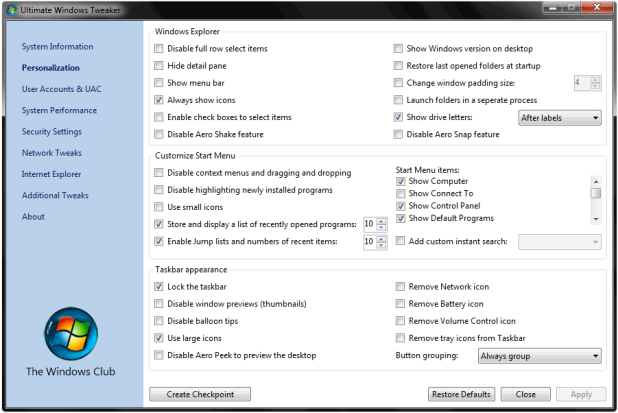
Tweak Windows for Faster, Stable & Secure ExperienceUltimate Windows Tweaker is a freeware utility used to tweak Windows 7 32 bit or 64 bit according to your preference, you can change many things and tweak Windows for fast speed. So after tweaking with this useful utility your can make your system more faster, stable and secure.
Now this new version is update with the support of Internet Explorer, you can tweak Windows Explorer, customize start menu, and many more things so have fun tweaking Windows with this small utility download it from below.
Tweak Windows for Faster, Stable & Secure Experience

DOWNLOAD ULTIMATE WINDOWS TWEAKER

Samsung Galaxy Note - 4 Tips for using Stylus Pen


Samsung-Galaxy-NoteSamsung Galaxy Note has some unique characteristics which makes it the best smartphone ever made by Samsung. Well many people said that it’s the most awesome smartphone ever made in the world but well there are many more phones that compete with it like iPhone 4S and many more phones but well due to its large screen and stylus feature it can do many more advanced stuff than other smartphone.

4 Stylus Pen Tricks for Samsung Galaxy Note :


1. Taking Screenshots : Well you can take screenshots of your phone screen on your Galaxy Note by just pressing the Stylus button and than holding a press on your screen. Now you will get a flash kind of thing and your screen sill be captured now you edit it and add effects to it you can even crop your images and do many fun stuff with it.

2. Loading S-Memo : If you just wanted to use your big screen for writing than you can use S-Memo which has a feature to convert your handwriting to text. Just Press your Stylus button and than double click on the screen, now write anything and than click on Handwriting to Text and that’s it your text will be converted into normal text which you can copy and paste anywhere.

3. Bringing Menu : Your can obviously use the left touch key below to load your menu but if you want to complete that task using your Stylus than you just have to press the stylus button and than stroke upwards direction on your screen that’s it now your menu is loaded.

4. Canceling Tasks : If you wanted to cancel any ongoing task than you just have to press the Stylus button and than stroke on left and you will be able to cancel that task.

So these were some tips which can enhance your experience with the Galaxy Note Stylus Pen, we will be posting many more tips and tricks for Galaxy Note so stay updated.

How to Post Status Updates in Blue Color on Facebook


 today we are again back with another amazing trick for posting Blue text messages on Facebook wall or commenting with your message in Blue Color. Well so when ever person will click on the status he will be taken to his own profile. So just check out the steps below and have fun.


Steps for Posting Blue Status on Facebook :


1. Go to Facebook.com and Login with your Credentials.

2. Now go to update status link and paste below code, and change the text saying YOUR TEXT HERE with your own text you want in blue color like.

@[1: ]@@[1:[0:1: Your Text Here ]]

3. Now after you have done writing your text click on Post and Voila ! you will have your status in Blue Color which is dam ! awesome.


4. So isn’t this amazing trick to make text Blue in color so enjoy impressing your friends on Facebook and do share this trick if they ask you how its done.