AIRTEL
AIRTEL LIVE
Account Name – Airtel live
Homepage – http://live.airtelworld.com
Username – Leave Blank
... Password – Leave Blank
Proxy – Yes
Server Adress (Proxy) – 100.1.200.99
Access Point – airtelfun.com
Server Port (Proxy) – 8080
Data bearer – GPRS (Packet Data)
Authentication Type – Normal
MOBILE OFFICE
Account Name – Airtel Mobile Office
Homepage – www.techvorm.com
Username – Leave Blank
Password – Leave Blank
Proxy – No
Access Point – airtelgprs.com
Server Port – 8080
Data bearer – GPRS/Packet Data
Authentication Type – Normal
AIRTEL NOP
Account Name – Airtel NOP
Homepage – www.techvorm.com
Username – Leave Blank
Password – Leave Blank
Proxy – Yes
Server Address (Proxy) – 100.1.200.99
Access Point – airtelwap.com
Server Port (Proxy) – 8080
Data bearer – GPRS/Packet Data
Authentication Type – Normal
AIRTEL MMS
Account Name – Airtel MMS
Server Address – http://100.1.201.171:10021/mmsc
Proxy Address – 100.1.201.172
Proxy Port – 8799
IDEA
IDEA GPRS
Account Name – Idea Internet
Username – Leave Blank
Password – Leave Blank
Homepage – http://wap.ideafresh.com
Server Port (Proxy) – 8080
Server adress (Proxy) – 10.4.42.45
Databearer – GPRS /Packetdata
Access Point – imis
Proxy – Yes
Authentication Type – Normal
VODAFONE
VODAFONE GPRS
Account Name – Vodafone GPRS
Homepage – http://live.vodafone.in
User Name – Leave Blank
Password – Leave Blank
Proxy – Yes
Proxy Address – 10.10.1.100
Proxy Port – 9401 (or 9201)
Data Bearer – Packet Data
Packet Data Access Point – portalnmms
Network type – IPV4 (Look for it in advanced settings)
Authentication – Normal
TATA DOCOMO
TATA DOCOMO DIVE IN
Account Name – Docom Dive
Username – Leave Blank
Password – Leave Blank
Homepage – http://divein.tatadocomo.com
Server Port (Proxy) – 8080
Server Address (Proxy) – 10.124.94.7
Databearer – GPRS /Packetdata
Access Point – tata.docomo.dive.in
Proxy – Yes
Authentication Type – Normal
DOCOMO INTERNET
Account Name – Docom Net
Username – Leave Blank
Password – Leave Blank
Homepage – www.techvorm.com
Proxy – No
Databearer – GPRS /Packetdata
Access Point – tata.docomo.internet
Proxy – Yes
Authentication Type – Normal
DOCOMO MMS
Account Name – Docomo MMS
Username – Leave Blank
Password – Leave Blank
Access Point- tata.docomo.mms
Homepage- http://mmsc/
Proxy – Yes
Server Address (Proxy) – 10.124.26.94
Port – 8799
Databearer – GPRS/Packetdata
Proxy – Yes
Authentication Type – Normal
RELIANCE
Reliance GSM WAP (GPRS)
APN – rcomwap
Login Request Required – off
Authentication – PAP
Data Compression – off
Header Compression – off
Settings Name – Mobile World
Home Page – http://wap.rworld.co.in
Proxy – Yes
Proxy Server Address – 010.239.221.005
Port – 8080
Username – Leave Blank
Password – Leave Blank
Reliance GSM RCOMNET
Account Name – RCOMNET
APN – rcomnet
Proxy – Leave Blank
DNS – Leave Blank
Username – Leave Blank
Password – Leave Blank
Reliance MMS
APN – rcommms
Login Request Required – off
Authentication – PAP
Data Compression – off
Header Compression – off
Settings Name – Reliance MMS
Proxy – Yes
Server Address (Proxy) – 10.239.221.5
Port – 8080
Username – Leave Blank
Password – Leave Blank
Server URL: http://10.239.221.47/mms/
AIRCEL
Aircel GPRS
Accont Name – Aircel GPRS
APN – aircelgprs
Homepage – www.techvorm.com
Proxy – Leave Blank
DNS – Leave Blank
Username – Leave Blank
Password – Leave Blank
Aircel Pocket Internet (WAP)
Account Name – Aircel WAP
APN – aircelwap
Homepage – www.techvorm.com
Proxy – Leave Blank
DNS – Leave Blank
Username – Leave Blank
Password – Leave Blank
BSNL
BSNL GPRS
APN – bsnllive
IP – 10.220.67.131
Port – 8080
Homepage – http://bsnllive.in
BSNL MMS
APN – bsnlmms
IP – 10.210.10.11
Port – 8080
Homepage – http://bsnlmmsc.in
BSNL Net
APN – bsnlnet
IP – Leave Blank
Port – Leave Blank
Homepage – http://www.techvorm.com
UNINOR
Uninor GPRS
Account Name – Uninor Gprs
Username – Leave Blank
Password – Leave Blank
Homepage – www.techvorm.com
Server Port (Port) – 8080
Server Address (Proxy) –10.58.10.58
Databearer – GPRS/Packetdata
Access Point – Uninor
Proxy – Yes
Authentication Type – Normal
VIDEOCON
Videocon GPRS
Connection Name – Videocon Internet
Data Bearer – Packet Data
APN – vinternet.com
Username – Leave Blank
Password – Leave Blank
Homepage – www.techvorm.com
Proxy server – Leave Blank
Proxy port – Leave Blank
Videocon WAP
Connection Name – Videocon WAP
Data Bearer – Packet Data
APN – vgprs.com
Username – Leave Blank
Password – Leave Blank
Homepage – http://wap.live.in
Proxy Server – 10.202.5.145
Proxy Port – 8799
Videocon MMS
Connection Name – Videocon MMS
Data Bearer – Packet Data
APN – vgprs.com
Username – Leave Blank
Password – Leave Blank
Homepage – http://10.202.4.119:10021/mmsc/
Proxy Server – 10.202.5.145
Proxy Port – 8799
AIRTEL LIVE
Account Name – Airtel live
Homepage – http://live.airtelworld.com
Username – Leave Blank
... Password – Leave Blank
Proxy – Yes
Server Adress (Proxy) – 100.1.200.99
Access Point – airtelfun.com
Server Port (Proxy) – 8080
Data bearer – GPRS (Packet Data)
Authentication Type – Normal
MOBILE OFFICE
Account Name – Airtel Mobile Office
Homepage – www.techvorm.com
Username – Leave Blank
Password – Leave Blank
Proxy – No
Access Point – airtelgprs.com
Server Port – 8080
Data bearer – GPRS/Packet Data
Authentication Type – Normal
AIRTEL NOP
Account Name – Airtel NOP
Homepage – www.techvorm.com
Username – Leave Blank
Password – Leave Blank
Proxy – Yes
Server Address (Proxy) – 100.1.200.99
Access Point – airtelwap.com
Server Port (Proxy) – 8080
Data bearer – GPRS/Packet Data
Authentication Type – Normal
AIRTEL MMS
Account Name – Airtel MMS
Server Address – http://100.1.201.171:10021/mmsc
Proxy Address – 100.1.201.172
Proxy Port – 8799
IDEA
IDEA GPRS
Account Name – Idea Internet
Username – Leave Blank
Password – Leave Blank
Homepage – http://wap.ideafresh.com
Server Port (Proxy) – 8080
Server adress (Proxy) – 10.4.42.45
Databearer – GPRS /Packetdata
Access Point – imis
Proxy – Yes
Authentication Type – Normal
VODAFONE
VODAFONE GPRS
Account Name – Vodafone GPRS
Homepage – http://live.vodafone.in
User Name – Leave Blank
Password – Leave Blank
Proxy – Yes
Proxy Address – 10.10.1.100
Proxy Port – 9401 (or 9201)
Data Bearer – Packet Data
Packet Data Access Point – portalnmms
Network type – IPV4 (Look for it in advanced settings)
Authentication – Normal
TATA DOCOMO
TATA DOCOMO DIVE IN
Account Name – Docom Dive
Username – Leave Blank
Password – Leave Blank
Homepage – http://divein.tatadocomo.com
Server Port (Proxy) – 8080
Server Address (Proxy) – 10.124.94.7
Databearer – GPRS /Packetdata
Access Point – tata.docomo.dive.in
Proxy – Yes
Authentication Type – Normal
DOCOMO INTERNET
Account Name – Docom Net
Username – Leave Blank
Password – Leave Blank
Homepage – www.techvorm.com
Proxy – No
Databearer – GPRS /Packetdata
Access Point – tata.docomo.internet
Proxy – Yes
Authentication Type – Normal
DOCOMO MMS
Account Name – Docomo MMS
Username – Leave Blank
Password – Leave Blank
Access Point- tata.docomo.mms
Homepage- http://mmsc/
Proxy – Yes
Server Address (Proxy) – 10.124.26.94
Port – 8799
Databearer – GPRS/Packetdata
Proxy – Yes
Authentication Type – Normal
RELIANCE
Reliance GSM WAP (GPRS)
APN – rcomwap
Login Request Required – off
Authentication – PAP
Data Compression – off
Header Compression – off
Settings Name – Mobile World
Home Page – http://wap.rworld.co.in
Proxy – Yes
Proxy Server Address – 010.239.221.005
Port – 8080
Username – Leave Blank
Password – Leave Blank
Reliance GSM RCOMNET
Account Name – RCOMNET
APN – rcomnet
Proxy – Leave Blank
DNS – Leave Blank
Username – Leave Blank
Password – Leave Blank
Reliance MMS
APN – rcommms
Login Request Required – off
Authentication – PAP
Data Compression – off
Header Compression – off
Settings Name – Reliance MMS
Proxy – Yes
Server Address (Proxy) – 10.239.221.5
Port – 8080
Username – Leave Blank
Password – Leave Blank
Server URL: http://10.239.221.47/mms/
AIRCEL
Aircel GPRS
Accont Name – Aircel GPRS
APN – aircelgprs
Homepage – www.techvorm.com
Proxy – Leave Blank
DNS – Leave Blank
Username – Leave Blank
Password – Leave Blank
Aircel Pocket Internet (WAP)
Account Name – Aircel WAP
APN – aircelwap
Homepage – www.techvorm.com
Proxy – Leave Blank
DNS – Leave Blank
Username – Leave Blank
Password – Leave Blank
BSNL
BSNL GPRS
APN – bsnllive
IP – 10.220.67.131
Port – 8080
Homepage – http://bsnllive.in
BSNL MMS
APN – bsnlmms
IP – 10.210.10.11
Port – 8080
Homepage – http://bsnlmmsc.in
BSNL Net
APN – bsnlnet
IP – Leave Blank
Port – Leave Blank
Homepage – http://www.techvorm.com
UNINOR
Uninor GPRS
Account Name – Uninor Gprs
Username – Leave Blank
Password – Leave Blank
Homepage – www.techvorm.com
Server Port (Port) – 8080
Server Address (Proxy) –10.58.10.58
Databearer – GPRS/Packetdata
Access Point – Uninor
Proxy – Yes
Authentication Type – Normal
VIDEOCON
Videocon GPRS
Connection Name – Videocon Internet
Data Bearer – Packet Data
APN – vinternet.com
Username – Leave Blank
Password – Leave Blank
Homepage – www.techvorm.com
Proxy server – Leave Blank
Proxy port – Leave Blank
Videocon WAP
Connection Name – Videocon WAP
Data Bearer – Packet Data
APN – vgprs.com
Username – Leave Blank
Password – Leave Blank
Homepage – http://wap.live.in
Proxy Server – 10.202.5.145
Proxy Port – 8799
Videocon MMS
Connection Name – Videocon MMS
Data Bearer – Packet Data
APN – vgprs.com
Username – Leave Blank
Password – Leave Blank
Homepage – http://10.202.4.119:10021/mmsc/
Proxy Server – 10.202.5.145
Proxy Port – 8799


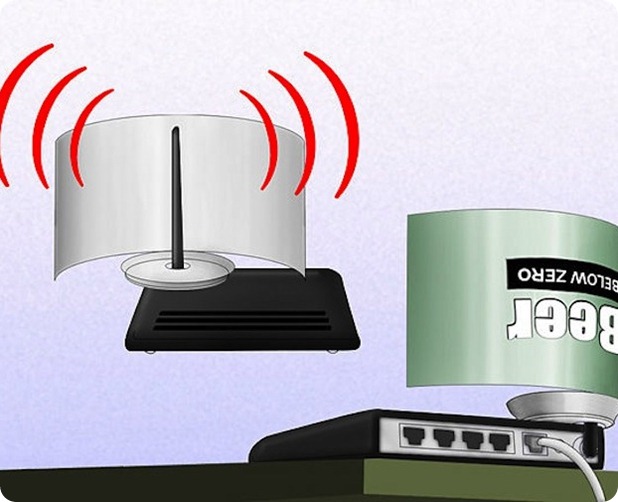
 Now after you have removed the small can opening piece you can to cut the can in the round diameter like in the image on the right hand side, we are doing this because we have to open that can and make a shape like small antenna.
 So now you have to repeat the same step on the other corner but this time you have to leave small space between the cuts so that the can remains attached to the bottom and we will have a look of antenna for our modem - router for boosting purpose. So remember this step is really important to follow else your antenna will not look like how it should be.